Shadowrocket App Store Download
Official App Store listing · Opens in a new windowDownload on the App Store- Developer Shadow Launch Technology Limited
- App ID 932747118
- $2.99 one-time purchase · US storefront reference price
- For iPhone and iPad
Shadowrocket is a paid app available only on the App Store. Verify the storefront and developer before purchasing. Check the App Store listing for the current price, system requirements, and purchase eligibility.
One-time app purchase ≠ service subscription. You’ll need your own existing subscription or server details to use the app.
Storefront and account region
Shadowrocket is not available on the mainland China storefront. Whether you can find and purchase Shadowrocket in the App Store depends on the country or region of the Apple ID used for Media & Purchases—not just your device’s current location. Seeing the product page on the web does not mean your current account can complete the purchase. Check the message shown in the App Store on your device.
The App Store button on this page links to Shadowrocket’s US storefront listing. The us in the URL identifies the web storefront; it does not change your account’s country or region. If the App Store says the current storefront is unavailable after you open the link, check your account settings. Don’t mistake a region notice for a misspelled app name or a device fault.
How to check your account region
On your device, go to “Settings → Apple ID → Media & Purchases → View Account → Country/Region.” You may need to authenticate first. The account menu may vary slightly across system versions, so follow the labels shown on your device. This checks the account used for App Store purchases; your device’s “Language & Region” setting is not the same as your App Store account region.
To change your region, look for the option on the same “Country/Region” page and review each requirement shown. Your account balance, active subscriptions, payment method, and Family Sharing settings may affect the process. Whether you can change regions depends on your account status and Apple’s prompts. This page explains where to find the setting but cannot guarantee a change will succeed. If a requirement isn’t met, follow the instructions on your account page first.
How to identify the genuine Shadowrocket app
Use the app name to find it, then verify the developer, official icon, and app ID. Don’t identify the app by a nickname or by its position in search results.
Shadow Launch Technology Limited
01 · Verify the developer
Open the product page and find the developer or seller information. Confirm the name is Shadow Launch Technology Limited. Search results may include apps with similar names, so open the full product page rather than relying on the list title. Check the complete developer name; a few similar words aren’t enough.
02 · Compare the official app icon
The official icon is a blue-and-purple outlined rocket on a white background, matching the one shown on this page. Use the icon as a visual clue, not as proof by itself. Even if an icon looks similar, still verify the developer and app ID. Store screenshots can help you recognize the interface, but their text and layout do not establish the app’s identity.
03 · Check the app ID
The app ID is 932747118, and the product page URL ends with id932747118. Check the current product URL in your browser. You can also use the App Store’s share option to get the product link and verify it. The app name may wrap differently depending on how it’s displayed; the app ID is the fixed detail to check.
Once all three details match, review the purchase button and compatibility section. If anything doesn’t match, return to the App Store link on this page and check again rather than guessing among similar results. This is the official Shadowrocket website and manual. Refer to the App Store listing and the app’s actual contents for accurate purchase and usage information.
What to expect in the app
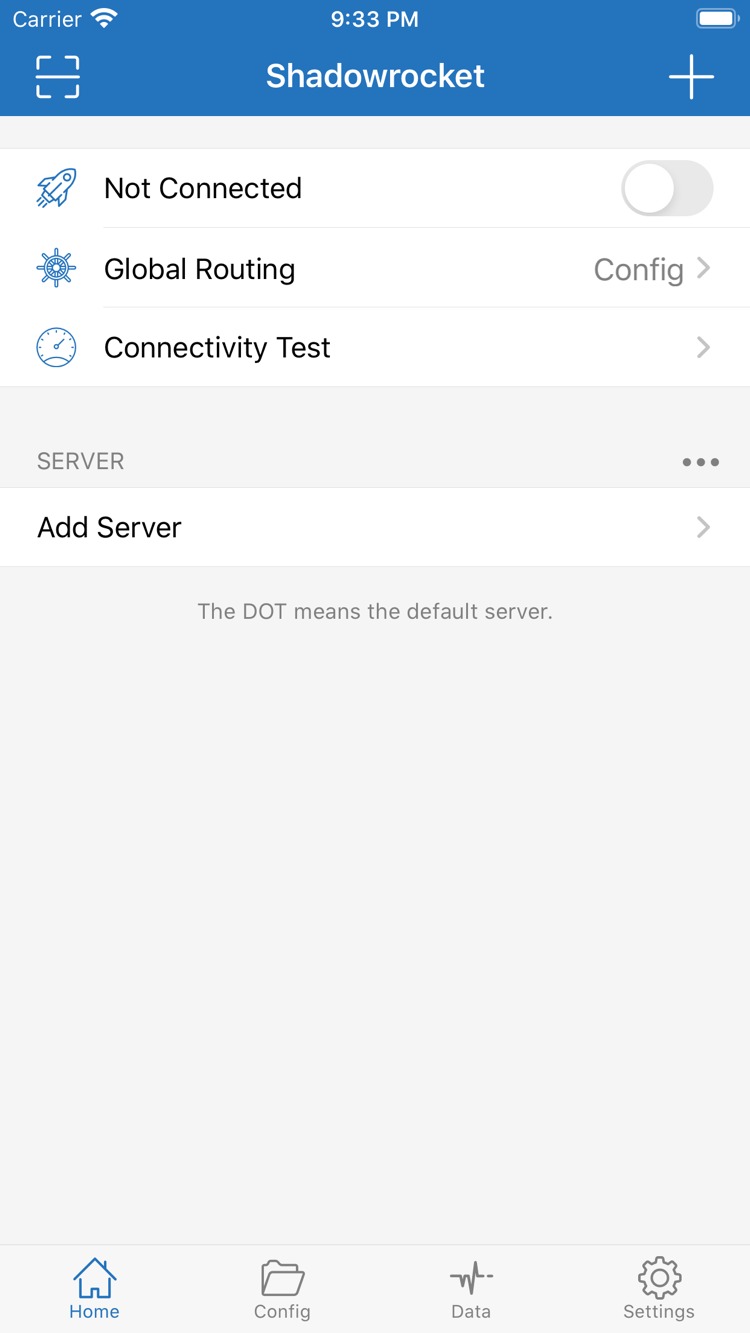
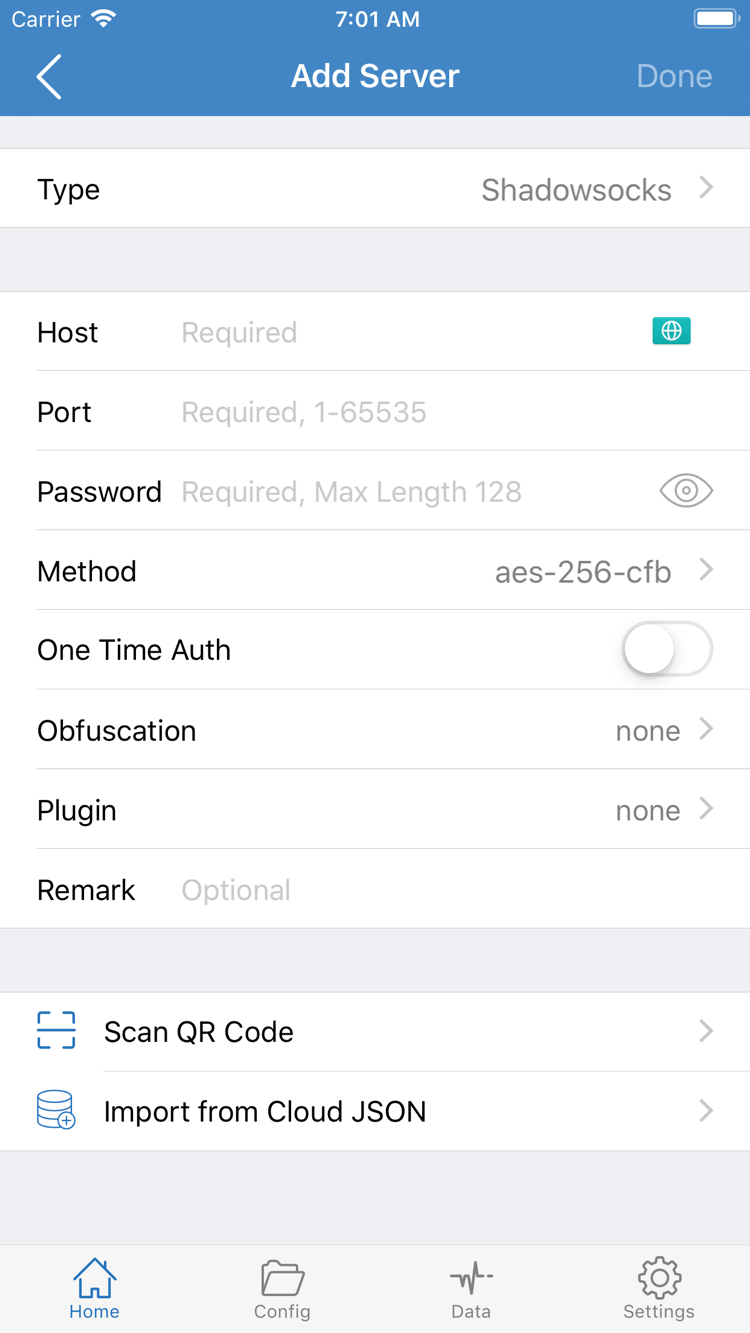
These are official App Store screenshots. The interface may vary depending on the app language, existing configuration, and system environment. Use the screenshots to identify screens; installing the app does not provide a server connection.
Buying and opening Shadowrocket on iPhone
Open the App Store link on this page from your iPhone. After verifying the app, check the “Compatibility” section of the product page before purchasing. Check the App Store listing for system requirements. Don’t rely only on your device model or someone else’s installation experience. If the store says your system doesn’t meet the requirements, follow the information for your device and the product page.
For your first purchase, the App Store displays the price in your local currency and asks you to confirm payment according to your device settings. Before confirming, check which Apple ID is being used and make sure you’ll retain access to that account and its purchase history. Once the app icon appears on your Home Screen, open Shadowrocket. The SERVER list in Home will depend on whether you’ve added your own configuration.
VPN configuration permission and payment are separate steps
When you first enable a connection, the system may ask to allow a VPN configuration. This is permission to configure the network on your device, not a second app purchase. Check the app name in the system prompt, make sure you initiated the action, then approve it or complete device authentication as prompted. If you don’t have your server details ready, read the guide before continuing with the connection steps.
Buying the app does not automatically add a working service to the SERVER list. If you already have a subscription, use the details you obtained from your provider. If you have details for an individual server, check fields such as Type, Host, and Port in Add Server. App Store payment, app installation, and a successful connection are separate outcomes; verify each one.
Before connecting, read the setup guide and follow the steps to import your configuration, select Global Routing, connect, and run Connectivity Test. If the issue is with payment or getting the app, check the App Store prompt. If the app opens but won’t connect, troubleshoot your configuration and network.
Installing Shadowrocket on iPad and purchase eligibility
Shadowrocket is available on both iPhone and iPad. Sign in with the Apple ID used for the purchase, then find and redownload the app in the iPad App Store’s purchased items. “Same account” means the account used for Media & Purchases. If other Apple services on your device use a different account, check which account is currently signed in to the App Store.
Before installing, check the compatibility information on the product page on your iPad. Check the App Store listing for system requirements. If you bought Shadowrocket on iPhone but the iPad App Store still shows a price, first check the original purchase record and the account currently used for the storefront. Don’t assume the price means you must pay again.
The wider iPad screen may change page spacing, list width, and layout between portrait and landscape, but you can still find your way using interface labels such as Home, Config, Data, and Settings. Differences in spacing between a screenshot and your device don’t mean you have the wrong app. Verify the app by checking the developer, official icon, and app ID.
A purchased app does not mean your configuration has synced
After installing on iPad, check whether the SERVER list and your current configuration are present, then import your existing subscription or server details. Different devices may be on different networks, so test the connection on each one. A successful iPhone connection does not replace testing on iPad; reinstalling the app also doesn’t confirm that your configuration has been fully restored.
Compatibility with other Apple devices
The compatibility section of the same App Store listing also includes Mac, Apple TV, and Apple Vision. Before using Shadowrocket on one of these devices, check the product details in its App Store. Refer to the App Store listing for universal purchase availability and system requirements. This page focuses on opening and configuring the app on iPhone and iPad; touchscreen instructions may not apply to other devices.
Switching devices, reinstalling, and restoring a purchase
After switching devices or deleting the app, go to “App Store → Account → Purchased” and look for Shadowrocket using the Apple ID that made the original purchase. If the purchase record is valid, the app is still available, and your device is compatible, you can redownload it from Purchased without paying again for the same account’s purchase. Menu locations may vary by system version; look in the account’s app list for purchased items.
Check the account first, then the purchase history
If you can’t find the app in Purchased, first check whether the account used for Media & Purchases is the one that made the original purchase, then look for Shadowrocket in your purchase history. After moving to a new device, the App Store sign-in, account region, or purchase display may differ from the old device. Having had an app icon on your Home Screen does not prove the current account has a purchase record.
If the product page still shows a price, hold off on paying and check the original purchase record and account prompts. For Family Sharing eligibility, check the App Store listing and your family settings; being in the same family group does not guarantee you can restore the purchase. Check app availability and device compatibility separately.
Restore your configuration after reinstalling the app
Redownloading only reinstalls the app. After installing it on a new device, check your existing data and import your own subscription or server details. You may also need to confirm VPN configuration permission again. Don’t re-enter subscription links, server settings, or custom rules from memory; check each item against information you’ve saved.
Before removing the app from your old device, make sure you can retrieve the configuration you need and that the new device has passed a connection test. If you need to report an issue, share only the error and relevant settings. Don’t expose full subscription links, Password values, or other sensitive information in public screenshots or messages. For more guidance on managing configurations after switching devices, see the complete manual.
Manage app updates through the App Store. Check for available updates on your store account page or use automatic updates in your device settings. Make sure you can still access your configuration details before and after updating. To learn what has changed, check the product page’s release notes rather than relying on screenshots or descriptions from an older guide.
What the price and one-time purchase cover
Shadowrocket is a commercial app with a one-time purchase; there is no monthly fee for the app itself. The US storefront reference price is $2.99; other storefronts show local pricing. The actual price is the amount shown on the App Store product page and payment confirmation screen when you buy. The currency and amount may vary by account region, so don’t treat the US price as a fixed price for every storefront.
The one-time purchase covers the right to use the app. It is separate from the billing for any service you already have. The app price does not include server resources, a subscription term, or a data allowance. Before buying, make sure you know what you’re paying for. Afterward, manage your App Store purchase record separately from your service account.
If the app is installed but Home has no server to select, prepare your own configuration details instead of buying the app again. If a server appears in the SERVER list but won’t connect, check the server status, settings, Global Routing, and your current network. Paying for the app again won’t resolve configuration issues or change the status of your existing service.
Payment confirmation, transaction records, and app updates are handled in the App Store. Importing subscriptions, selecting rules, and testing connections happen in Shadowrocket. Keeping these workflows separate makes it easier to identify where a problem occurred. For the first connection, read the setup guide. For purchase and restore questions, see the FAQ below.
Purchase and installation FAQ
Check storefront availability, device requirements, and purchase history in that order. Select a question to expand the answer.
Why can’t I find Shadowrocket on the App Store?
Shadowrocket is not available on the mainland China storefront. The country or region associated with your Apple ID determines which App Store content you can see. Check it under Settings → Apple ID → Media & Purchases → View Account → Country/Region. The us in a web link does not change your account region; availability depends on the App Store listing for your account.
I can see the product page but can’t download the app. What should I check first?
Check the specific message shown by the App Store, then verify your account region, device compatibility, payment status, available storage, and network connection. Check the App Store listing for system requirements. If payment is complete, review your purchase history and purchased items before taking further action.
Do I have to pay again when I switch to a new iPhone?
Sign in with the Apple ID used for the original purchase, then find Shadowrocket under App Store → Account → Purchased to redownload it, usually at no additional cost. If a price appears, check the account used for Media & Purchases and confirm the original purchase record. Redownloading the app does not restore your configuration.
I bought Shadowrocket on iPhone. Can I install it on iPad too?
Yes. Shadowrocket is available on both iPhone and iPad. Sign in with the same Apple ID used for the purchase, then find Shadowrocket in the iPad App Store’s purchased items. Check the App Store listing for system requirements. After installation, check for and import your existing subscription or server details.
Can I use Shadowrocket on Mac, Apple TV, or Apple Vision?
The compatibility section of the same App Store listing includes Mac, Apple TV, and Apple Vision. Check availability in the App Store on the device you plan to use. Refer to the listing for system requirements and whether the purchase is universal; iPhone and iPad instructions may not apply.
The app interface is in English. How can I follow the instructions?
Use the official screenshots on this page to identify Home and Add Server, then refer to the English interface labels in the official manual. In Home, look for Global Routing, Connectivity Test, and SERVER. In Add Server, compare Type, Host, and Port with your own server details. See the setup guide for the first connection steps.
Already installed the app? Continue with the first-time setup and connection guide, or look for the issue you’re seeing in the FAQ.