Developer, icon, and app ID
Open the product page and confirm the name is Shadowrocket. Check that the developer is Shadow Launch Technology Limited and compare the listing with the official icon shown here. The id932747118 in the product URL is the app ID. Search results may include apps with similar names or icons, so check all three details together. If any detail does not match, return to the verification page and reopen the App Store link. Do not proceed with a purchase based only on a vague resemblance.
The icon helps identify the app; the developer and app ID provide further confirmation. On the App Store, also review compatibility, price, and purchase details as shown by your current storefront. This manual explains the steps, but whether your device is compatible, the system requirements, and the scope of the purchase should be checked on the App Store listing.
App Store availability and account region
The currency, app availability, and purchase details shown in the App Store depend on your account’s storefront. After opening the link on this page, confirm that the store shows the same app and review its purchase status for your account. If you cannot find it in search, check the product link and store notices first. A missing search result does not prove that the app has been removed from every storefront. Prices on different storefronts are not the same transaction amount.
This guide does not specify a fixed minimum system version. To use Shadowrocket on another device, open the same product page and check the compatibility section for device and system requirements. Review the terms shown in the App Store before paying. Check the listing for details about universal purchase and applicable terms.
One-time app purchase versus server service
Buying the app ≠ buying a server plan. Shadowrocket’s one-time purchase is for the client app; it does not provide server or subscription details. The US storefront reference price is $2.99. Other storefronts show local currency, and the App Store listing shows the actual price. This site does not provide, sell, or recommend servers or subscriptions; the guides explain how to import and use service configurations you already have.
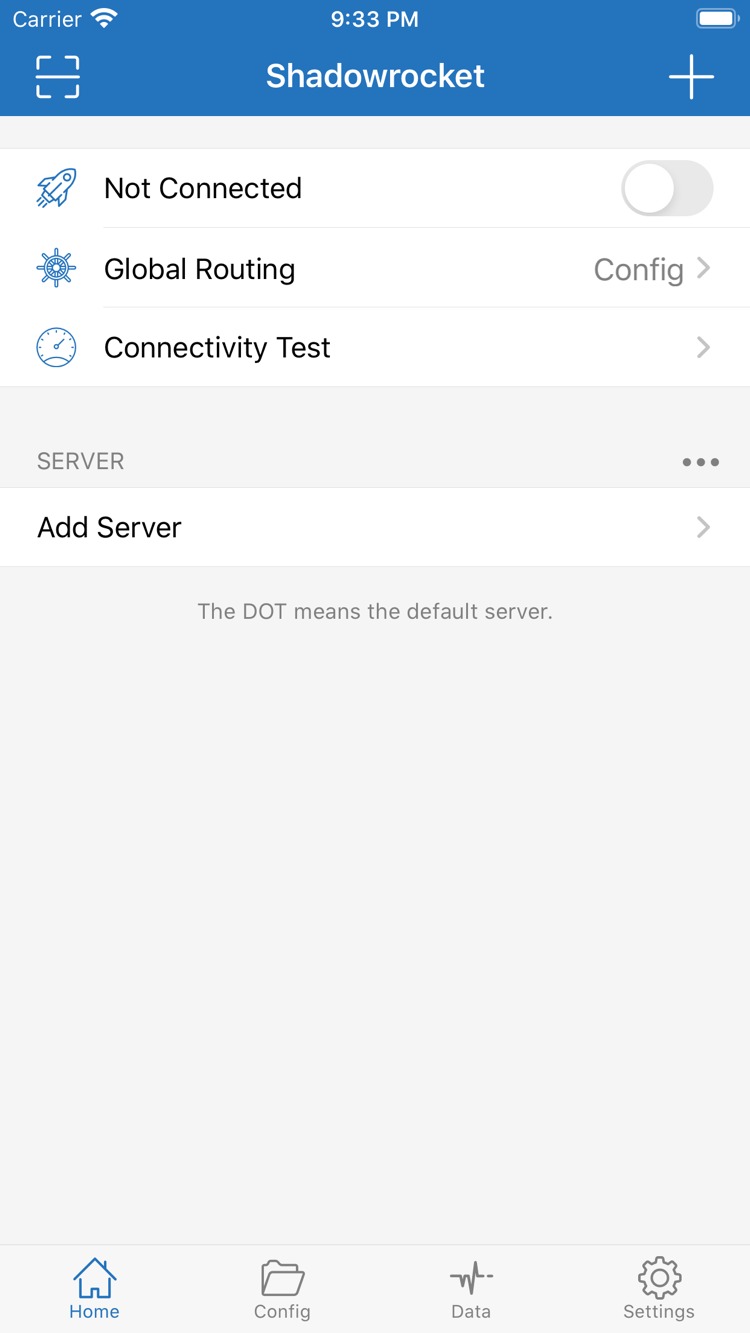
Keep the two types of issues separate: check purchase status and app installation in the App Store; check server details, subscription status, and connection results against your existing service information and in the client. If you have paid but the Home list is empty, add a configuration rather than buying the app again. If an existing entry cannot connect, follow the connection troubleshooting steps.
Using the same purchase on a replacement device
A purchase can be used on iPhone and iPad. To restore it after replacing a device or reinstalling the app, sign in with the same Apple ID used to purchase Shadowrocket, find it in your App Store purchase history, and check its download status. Check the App Store listing for system requirements and whether the purchase is universal. If you see a purchase button, first confirm that the current account matches the one used for the original purchase; an account mismatch does not mean the purchase has expired.
Getting the app again does not restore configurations from your previous device. Check server entries, subscriptions, and configuration files separately. If you use iCloud features, verify what actually appears after syncing and which configuration is selected. After restoring, check the default server, Global Routing, and On Demand, then test a manual connection. This helps avoid mistaken conclusions when old settings differ from the new device’s state.
App updates and configuration maintenance
Manage app updates in the App Store, where you can check the update history and current availability. If the layout or location of an option changes, use the English interface labels shown on your device to find it. Updating the app, refreshing a subscription, and editing Config are separate actions: app updates change the client, subscription updates refresh existing server details, and configuration edits change rules and related settings.
For routine maintenance, keep a restorable copy of your configuration and note the file and server in use before making individual changes. If something goes wrong, compare against the last set of conditions you confirmed worked. This helps distinguish changes to server details, rule selection, or network conditions instead of attributing everything to an app update.